Availability
→ → → → → →
From the Availability page of the Product List editor, define availability settings for a product.
Availability restrictions are enforced in the following areas:
Product Lookup
Item Menus
Item Modifier Menus.
A toast notification is displayed when a product is unavailable.
Availability Settings
To define availability settings for a product:
From the Availability page, locate the Availability section.
Toggle the following settings to the appropriate value:
Setting
Description
Active
Toggle Active if the site sells the product when available.
Available
Toggle On if the product is currently "Live" at the site.
Toggle Off if the product is NOT available at this site ("86" this item).
Allow POS to Control Availability
Toggle On to allow POS users to update the availability status of the product from Product Details.
Toggle Off to NOT allow POS users to update the availability status of the product.
Staging
Toggle On if the product is currently being staged and is NOT ready for sale at sites.
Forbid Adding Via Lookup
Toggle On to prevent POS users from adding the product to an order from the Product Lookup screen.
Next to the Available field, select the globe icon to open the Product Availability form.
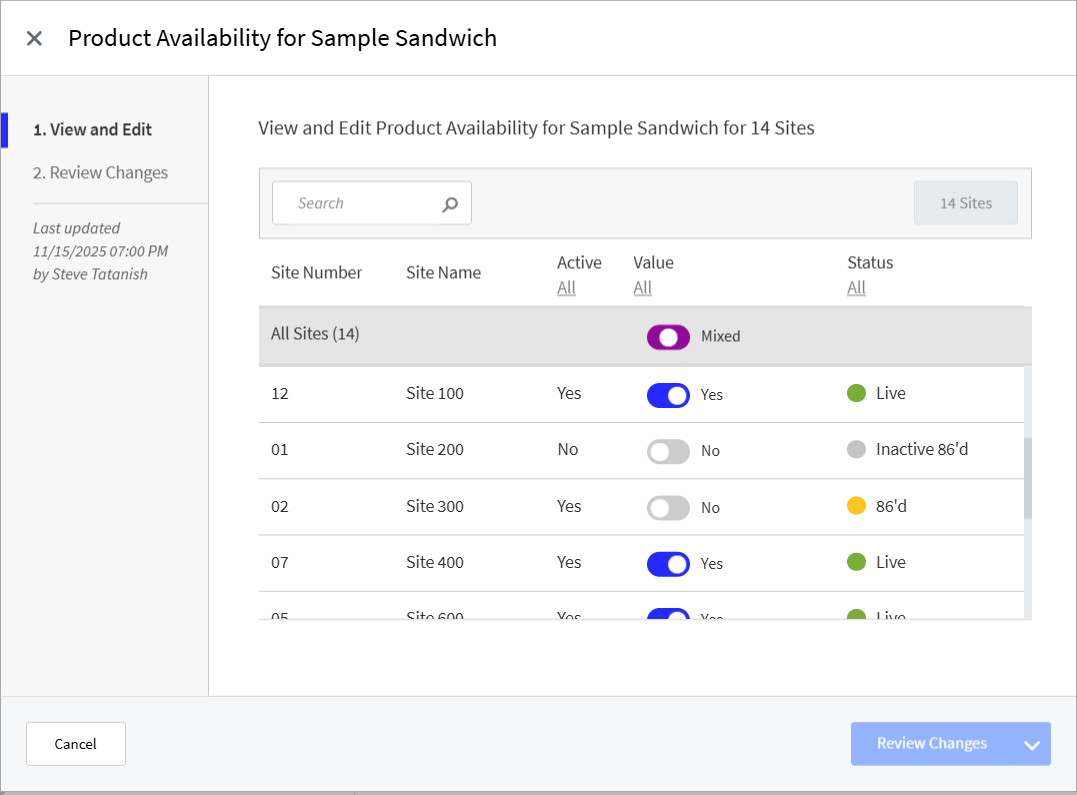 |
The Product Availability form indicates a product's Active state and its availability status at each listed site.
The Active state of a product determines if a site sells the product when available.
The Status of a product's availability determines if the product is currently "Live" at a site, or if it is "86'd".
When a product is "86'd", it cannot be added to an order at the POS.
Use the Value toggle to adjust the Status of a product's availability at a site.
Status | Active | Available |
|---|---|---|
Live | Yes | Yes |
86’d | Yes | No |
Inactive | No | Yes |
Inactive 86’d | No | No |
Restriction Age
To restrict the purchase of this product by age:
From the Availability page, locate the Restriction Age section.
Define the following settings:
Setting
Description
Restrict Age
Restrict the purchase of this product by age
Age Value
Minimum age to purchase this product
Order Sources
To restrict a product's availability by order source:
From the Availability page, locate the Order Sources section.
Toggle Allow Order Source Restriction to On.
Toggle Available to No for each order source where sales of the product are NOT available.
Fulfillment Method
Identify the methods that the product can be provided to the customer:
From the Availability page, locate the Fulfillment Method section.
Toggle the following settings to the appropriate value:
Setting
Description
Shipping
Toggle On (Yes) if the product is available to be shipped to the customer’s location.
Pick Up Later
Toggle On (Yes) if the product is available to be picked up at the store at a future date/time.
In-Store Purchase
Toggle On (Yes) if the product is available to be taken home from the store at time of purchase.