Image Sets
Image Sets are company-level entities that define the "type" or "slot" of images that can be associated with various DM entities — essentially acting as named image containers that tell the system what kind of image goes where and for which app.
In practice, Image Sets act as the schema for images — you define the set (e.g., "Large Product Image" for the product entity), and then actual image URLs are associated with entities (e.g. products, menus) using that set as the reference.
This decouples the image definitions from the products themselves, so display rules can be managed centrally without changing individual product records.
When you create a product, you upload images and assign each one to a specific Image Set. This allows different displays (e.g. POS terminal, Digital Menu Boards) to pull the appropriate image format.
Use Image Sets to create the Image Sets for each usage type.
Image Set List Overview
The following is an overview of the Image Set List homepage:
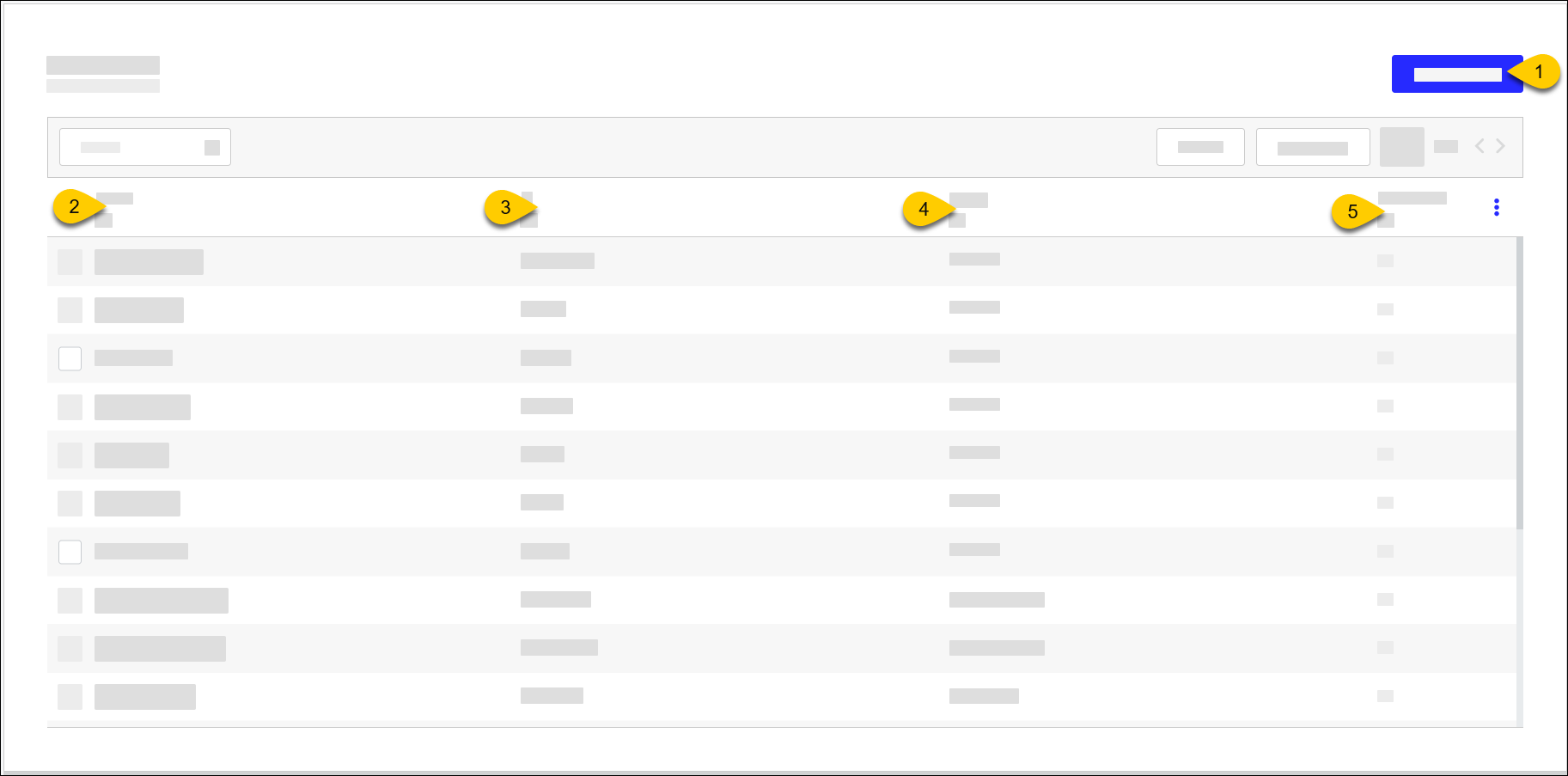 |
1 | New Image Set | |
2 | Name | Image Set Name |
3 | ID | Image Set ID |
4 | Usage | Identifies the entity that uses the Image Set Entity types include: Allergen, Event Type, Menu, Menu Category, Order Source, Product |
5 | Predefined | Indicates if Image Set is default or manually created |
Create Image Set
→ → → → →
To create an image set:
From the Image Set List homepage, select New Image Set.
In the Name field, type a name for the image set.
In the ID field, type an identification code for the image set.
From the Usage dropdown, select the entity type that uses the image set.
Entity types include: Allergen, Event Type, Menu, Menu Category, Order Source, Product
From the upper-right of the screen, select Save.