Content Layouts
→ → → →
A Content Layout is a Display Schema with specific Content Designs for each Daypart.
Use Content Layouts to manage the DMB content deployed to sites. The following is an overview of the Content Layouts homepage:
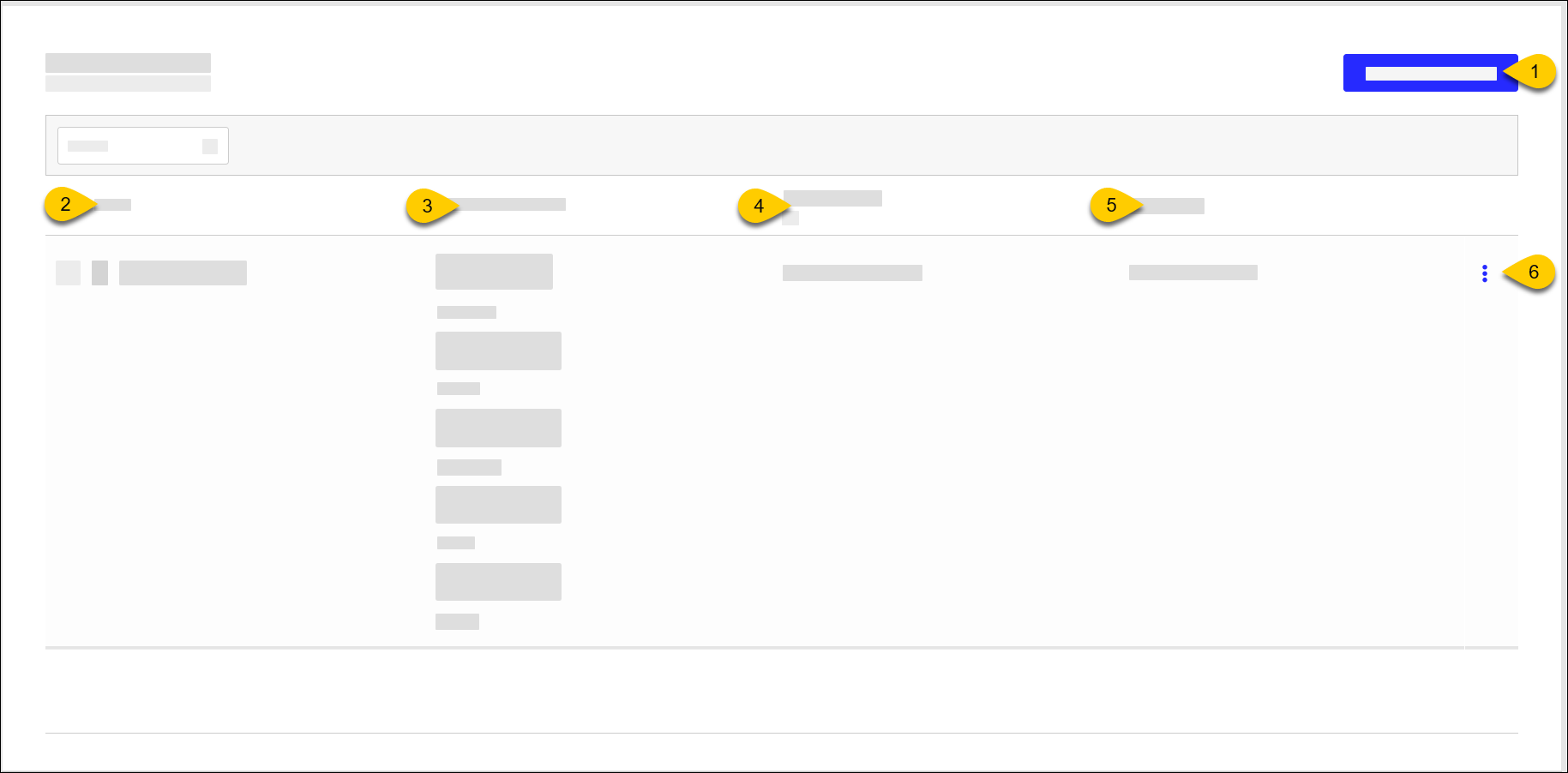 |
1 | Create Content Layout | Create new Content Layout |
2 | Name | Name of Content Layout |
3 | Content Thumbnails | Content thumbnails of displays in Display Schema To view all thumbnails, select the right-arrow next to the Content Layout name. |
4 | Display Schema | Name of Display Schema assigned to Content Layout |
5 | Last Update | Date/time of last update to Content Layout |
6 | 3-Dot Menu | Select an action to perform on the Content Layout:
|
→ → → →
To create a Content Layout:
From the Content Layouts homepage, select Create Content Layout.
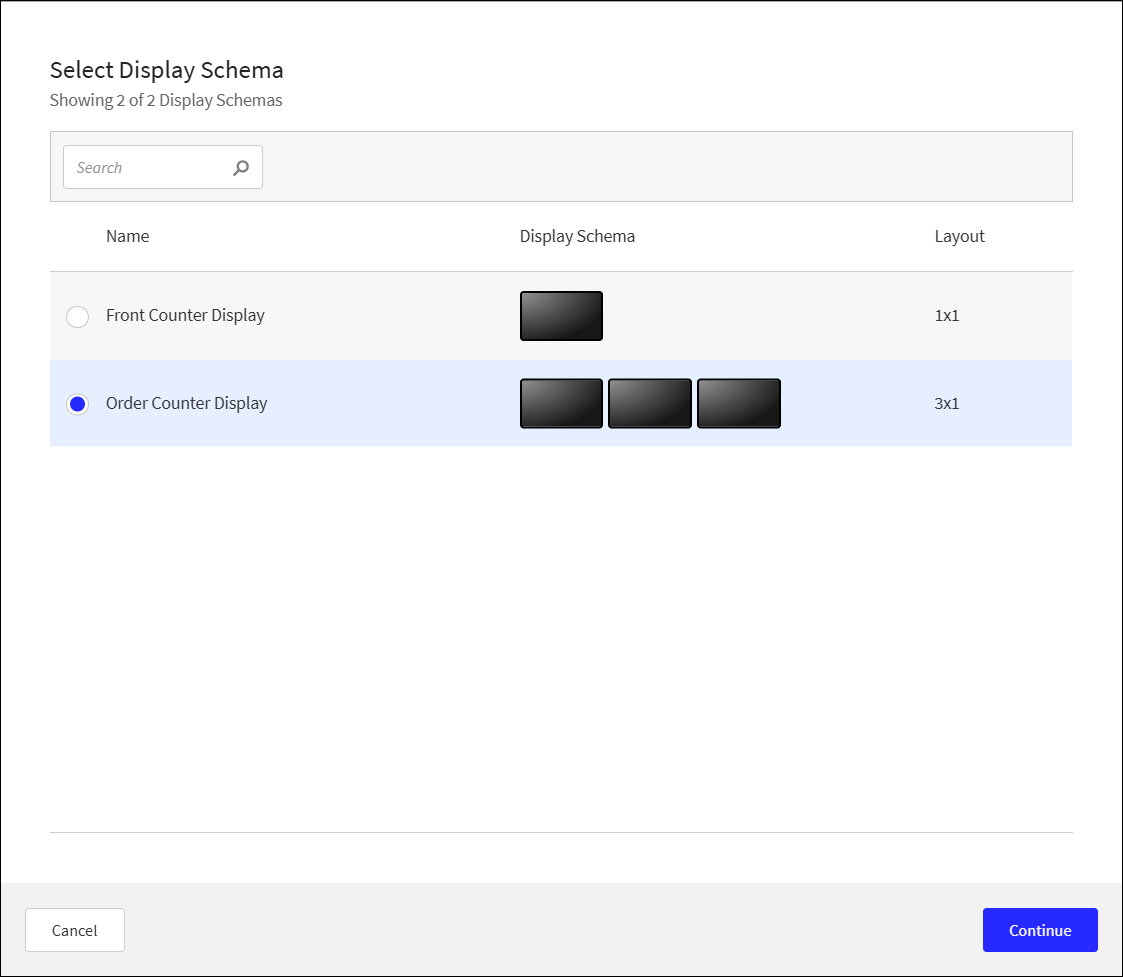
From the Select Display Schema popup, select the Display Schema to assign to the layout, and then select Continue.
From the General page of Create New Content Layout, define the following:
Setting
Description
Content Layout Name
Name of Content Layout
Description
Description of Content Layout
From the Content page of Create New Content Layout, add content designs to the displays for each day part.
To edit a Content Design assignment, select the pencil located next to the display icon.
Preview Content Layout
After you assign a Content Design to a Display Schema, preview the Content Layout:
From the upper-right of the Assign Content Designs screen, select Preview.
From the upper-right, select Save.
→ → → →
Important
Before you can deploy a Content Layout, you must assign a Content Design to each display in the Display Schema.
To deploy Content Layout:
From the Content Layouts homepage, locate the Content Layout.
From the 3-dot-menu on the row of the Content Layout, select Edit.
From the upper-right of the Content Layout screen, select Ready to Deploy.
→ → → →
Synchronize screens in a Content Layout so that the same media plays on all screens simultaneously. Content is synchronized on startup and daypart change.
To synchronize video and image components, set the playtime duration of the media carousel to the same value on all layers on all Content Designs in the Content Layout:
From the Content Designs homepage, open the Content Design.
From the Layers pane of Content Designer, select the media carousel.
From the lower-right of Carousel Settings, locate the video component.
Remove the check mark from the Auto column.
In the Duration(s) field, type the number of seconds to play the video. Decimal values are not supported.
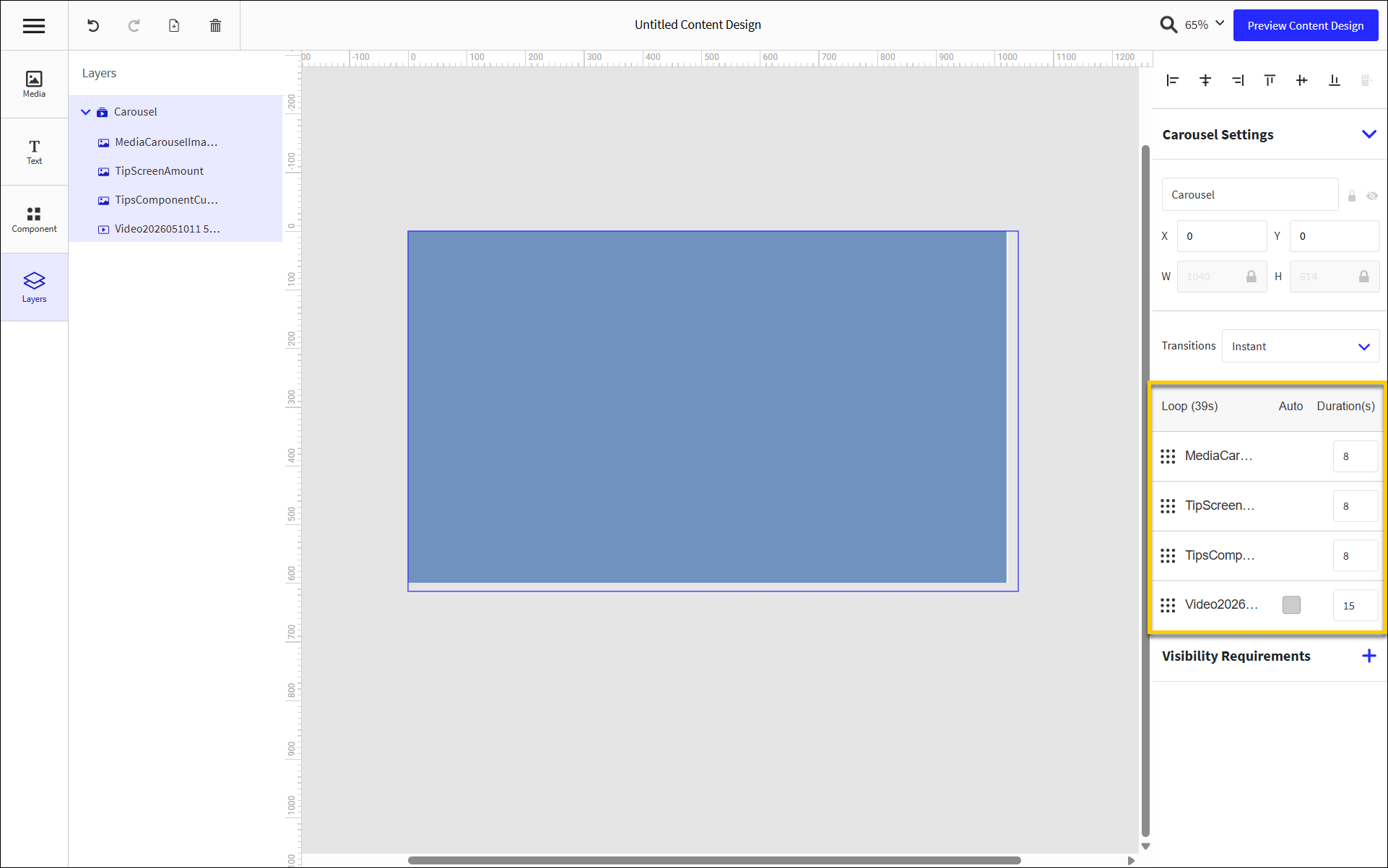
In this example:
Three (3) images are displayed for eight (8) seconds each (you can use different images on each screen).
A video plays for fifteen (15) seconds.
Important
Synchronized Content Designs must be assigned to the same Content Layout.
The sequence in which media carousel components are displayed must be identical across all Content Designs in a layout.
From Carousel Settings, select and drag the control to the left of the components to sort them in the preferred sequence.