SNAP EBT Guide
The steps and resources for SNAP EBT implementation for processors are outlined in the table below.
Section | Description |
|---|---|
Steps for processor configuration. | |
A list of endpoints to be whitelisted to allow traffic between processors and Foodservice Management. | |
The data flow steps for transactions between processors and Foodservice Management. | |
Configuration steps and requirements for SNAP EBT transaction processing. | |
Additional resources. |
Configuration
Configuration for the processor's hosted payment is done in the Foodservice Management Portal. Foodservice Management's customers will not have access to these configuration settings. Only authorized Foodservice Management team members are allowed access.
To access the configuration section in the Foodservice Management Portal:
Navigate to → → .
From Credit Card Online For Online / Mobile Payment Processor, select the Online/Mobile Payment Processor from the dropdown menu.
From Online/Mobile Payment Processor, enter the text fields with the required information.
Network Requirements
The endpoints may need to be whitelisted by the BTS network team to ensure traffic is allowed to the partner's system from Foodservice Management’s Azure hosted servers. Information needed includes:
Live or Test environment
URLs
Ports
IP Addresses
Data Flow
The SNAP EBT transaction flow:
The online ordering guest logs in and establishes an authentication session.
The online ordering guest initiates the checkout process.
The online ordering guest's saved payment tokens are retrieved based on the authentication session context. The payment tokens are encrypted at rest and in transmission.
The store identifier (ID), terminal ID, and hosted payment controls (HPC) connection details are retrieved based on the order site's location from the auth context.
The API request to receive HPC iframe control is made to the processor with configured store and terminal IDs.
After the iframe form submission, a Payment Key is received from the processor.
The Payment Key is submitted along with order details to HPC Payment service to process payment.
If the payment response is successful, the processor sends an acknowledgment request, otherwise the processor sends a reversal request.
After successful payment response the order details are returned to the guest for order confirmation.
Enable SNAP EBT Transactions on Kiosk and POS
To enable SNAP EBT transactions on Kiosks and point of sale (POS) devices, complete the steps listed below.
Enable item eligibility:
Navigate to Navigate > Menu > Items > Advanced > General
Locate the Snap/EBT Eligible setting, and check the box to enable.
Enable SNAP/EBT Tender:
Navigate to System Management > System Settings > Payment Profiles > Tender Type
In the Accept SNAP/EBT Field, set the toggle to On.
Food and Nutrition Service Setup:
Navigate to Customer Maintenance > Customer > Revenue Centers > Revenue Center Tab
In the Food and Nutrition Service (FNS) field, type the number to appear on customer receipts.
To update system text for Kiosk:
Navigate to System > System Text Editor > Kiosk Ordering
In the SNAP Eligible field, enter the text to display
In the SNAP/EBT Eligible Items field, type header text for the order details and order review page.
In the SNAP/EBT Eligible Subtotal field, type the subtotal text to display on order details, order review, and payment page.
In the Non-Eligible Items field, type the Non-Eligible text to display on the order details and order review page.
In the Non-SNAP Subtotal field, type the Non-SNAP subtotal text to display on order details, order review, and payment page.
In the Subtotal field, type the Subtotal text for the order details, order review, and payment page.
In the SNAP/EBT Balance field, type the text to appear on the main menu toolbar.
To update system text for POS:
Navigate to System > System Text Editor > POS Ordering
In the SNAP Eligible field, enter the text to display
In the SNAP/EBT Eligible Items field, type header text for the order details and order review page.
In the SNAP/EBT Eligible Subtotal field, type the subtotal text to display on order details, order review, and payment page.
In the Non-Eligible Items field, type the Non-Eligible text to display on the order details and order review page.
In the Non-SNAP Subtotal field, type the Non-SNAP subtotal text to display on order details, order review, and payment page.
In the Subtotal field, type the Subtotal text for the order details, order review, and payment page.
In the SNAP/EBT Balance field, type the text to appear on the main menu toolbar.
Screen Captures
Advanced menu item | 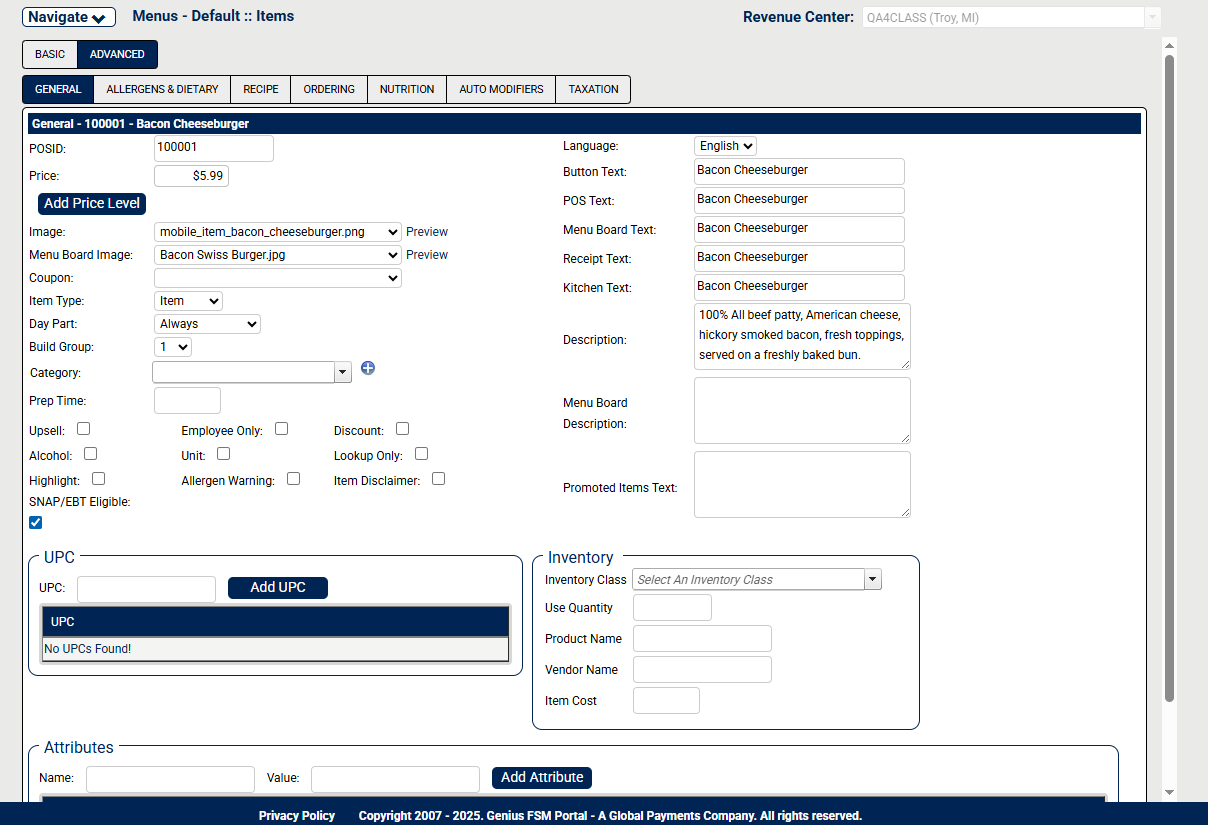 | |
Payment profiles | 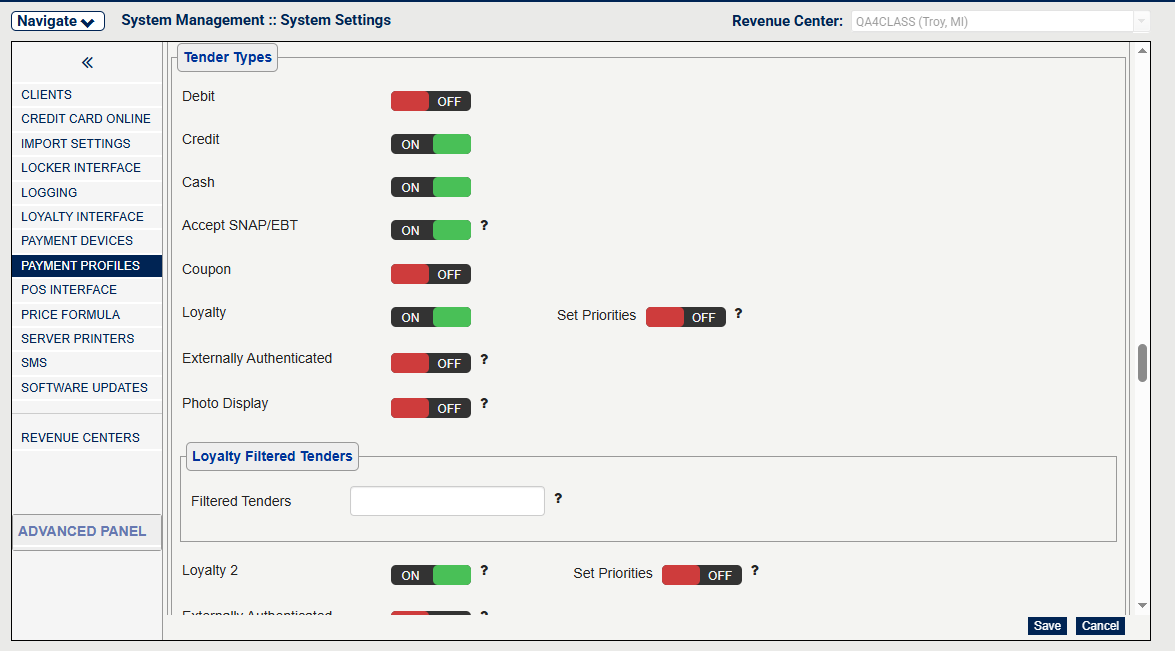 | |
Text editor |
|
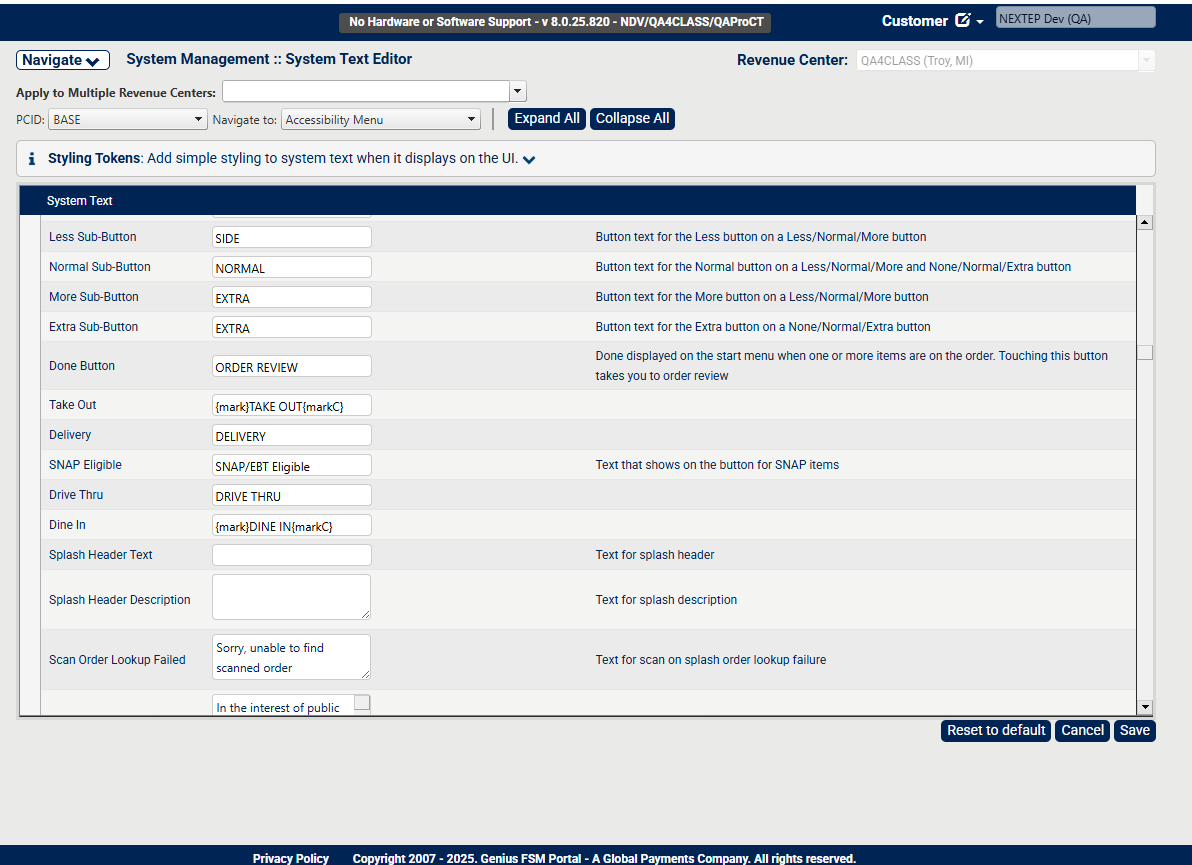
Processing Transactions | Hosted Credit Payment User Interface
When the processor hosted payment controls (HPC) configuration is complete, selecting Credit payment in the website initiates a request to the processor in order to retrieve the control that hosts the credit payment user interface (UI). This UI is an iframe tag that is provided by the processor. All credit card inputs on this credit UI are routed to the processor's services.
Processing Sales
Credit card sales are processed through the existing online ordering flow, with the addition of the new hosted payment iframe being displayed seamlessly when SNAP/EBT is selected at checkout. Users fill in the hosted credit form normally and confirm by selecting the Pay button displayed within the iframe.
Processing Refunds and Voids
Refunds and Voids are handled through existing processes in the Foodservice Management POS. Orders can be selected by properly authorized employees and voided or refunded through the existing interface on the Foodservice Management POS.
The Foodservice Management POS has been updated to hide refund button for SNAP orders to ensure card present refunds are not allowed. Non-eligible items can be refunded to a SNAP/EBT card.
Check EBT Balance
The setup steps for Check EBT Balance are listed below.
Enable Check EBT Balance on the Kiosk Main Menu Toolbar
→ → →
To set up Check EBT Balance on the Kiosk Main Menu Toolbar:
From the Kiosk, navigate to → → .
From the Main Menu Toolbar, add a new button Check EBT Balance.
Enable Check EBT Balance at the Kiosk Payment Screen
→ →
To set up Check EBT Balance on the Kiosk Payment Screen:
From the Kiosk, navigate to → .
From the Toolbar, persist the new button Check EBT Balance.
Enable Check EBT Balance at the POS
→
To set up Check EBT Balance on the point of sale (POS):
From the POS, navigate to System Management.
From System Management, add a new button called SNAP EBT.
Nota
Only display this button if SNAP/EBT is enabled in the Foodservice Management portal under Payment Profiles. For more information, see Enable SNAP EBT Transactions of Kiosk and POS.
Receipts
There are receipt display requirements for the grouping of items, payment details, EBT Balance details, EBT SNAP, and headers.
To display eligible and non-eligible SNAP items on receipts, the following requirements must be met:
Requirements for Eligible Items | Requirement for Non-eligible Items |
|---|---|
| Non-eligible items must be grouped under a header, such as NON-SNAP ITEMS, with standard item details. |
The receipt requirements for payment details:
Distinguish between EBT SNAP payment and credit card payment.
Display only the last 4-digits of the EBT card.
The receipt requirements for EBT Balance details:
Display previous balance.
Display Paid with EBT on the order.
Display paid with additional tender.
Display EBT Remaining Balance.
The receipt requirements for EBT SNAP:
Paid with EBT - $xxxx.
Paid with Additional Tenders - $xxxx
EBT Balance - $xxxx
On the receipt, the following headers should be bold:
SNAP Eligible Items
Non-Eligible Items
Technical Support
Review solutions for common errors or contact Foodservice Management Technical Support for assistance.
Error Loading Control
Confirm all settings are correct if this error is received.
Missing a Required HTML File
If there is no error and no frame with credit card inputs, then it is likely that the theme is missing the container control for the processor. Contact the creative team manager and/or DevOps to confirm that the hosted payment container has been added to the customer’s theme.
Technical Support Contact Information
Phone | 866-654-4848 |