Content Deployment
→ → →
From Content Deployment:
Schedule Content Layouts for deployment to sites. Preview and edit Content Layouts prior to deployment.
Manage Content Layouts scheduled for deployment
Review and edit deployed Content Layout
The following information is provided for each Content Layout listed on the Ready to Deploy tab of Content Deployment.
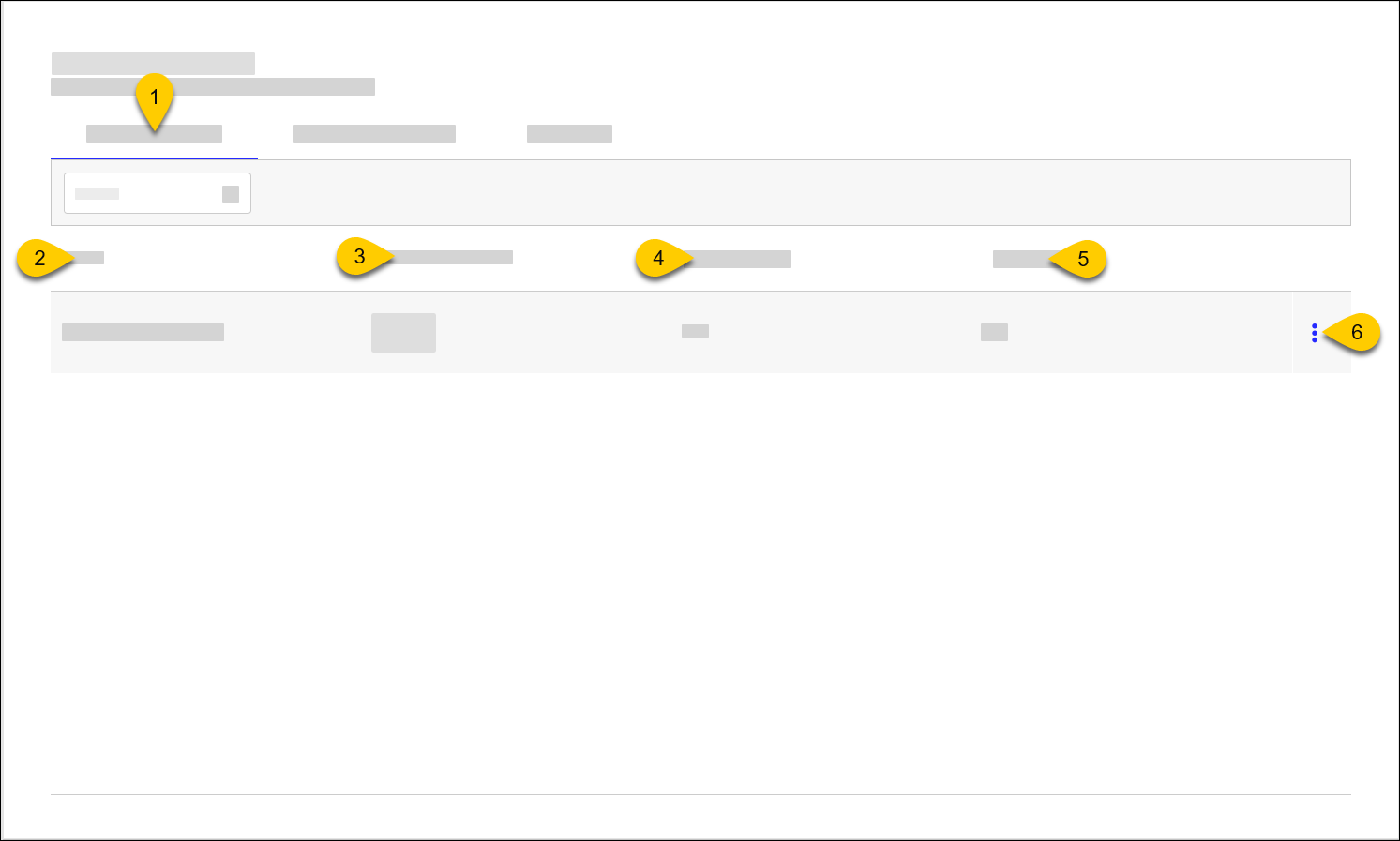 |
1 | Ready to Deploy | Schedule Content Layouts for deployment to sites. Preview and edit Content Layouts prior to deployment. The number of Content Layouts ready for scheduling is specified in parentheses. |
2 | Name | Name of Content Layout. Select a Content Layout to preview the Content Design assignments. |
3 | Content Thumbnails | View thumbnails of the Content Design assignments in the layout. |
4 | Display Schema | Name of Display Schema |
5 | # of Updates | Number of updates to deploy |
6 | 3-Dot Menu | Select an action to perform on the Content Layout:
|
Schedule Deployment
→ → →
To schedule the deployment of Content Layout:
From the Content Deployment utility, select the Ready to Deploy tab.
From the Content Deployment homepage, locate the Content Layout.
From the 3-Dot Menu on the row of the Content Layout, select Schedule.
From the Site Selector, select the sites receiving the Content Layout.
From Schedule Deployment, define the following:

Setting
Description
Deploy Now
Deploy the Content Layout immediately.
When selected, the Date and Time fields are disabled.
Date
Date of deployment. Select the calendar icon to open a calendar.
Time
Time of deployment
Notes
Notes about the deployment
From the lower-right of the Schedule Deployment window, select Confirm and Deploy.
Cancel Deployment
→ → →
To cancel a scheduled deployment:
From the Content Deployment utility, select the Ready to Deploy tab.
From the Content Deployment homepage, locate the Content Layout.
From the 3-Dot Menu on the row of the Content Layout, select Cancel Deployment.
When prompted for confirmation, select Cancel Deployment.
The following information is provided for each Content Layout listed on the Scheduled to Deploy tab of Content Deployment.
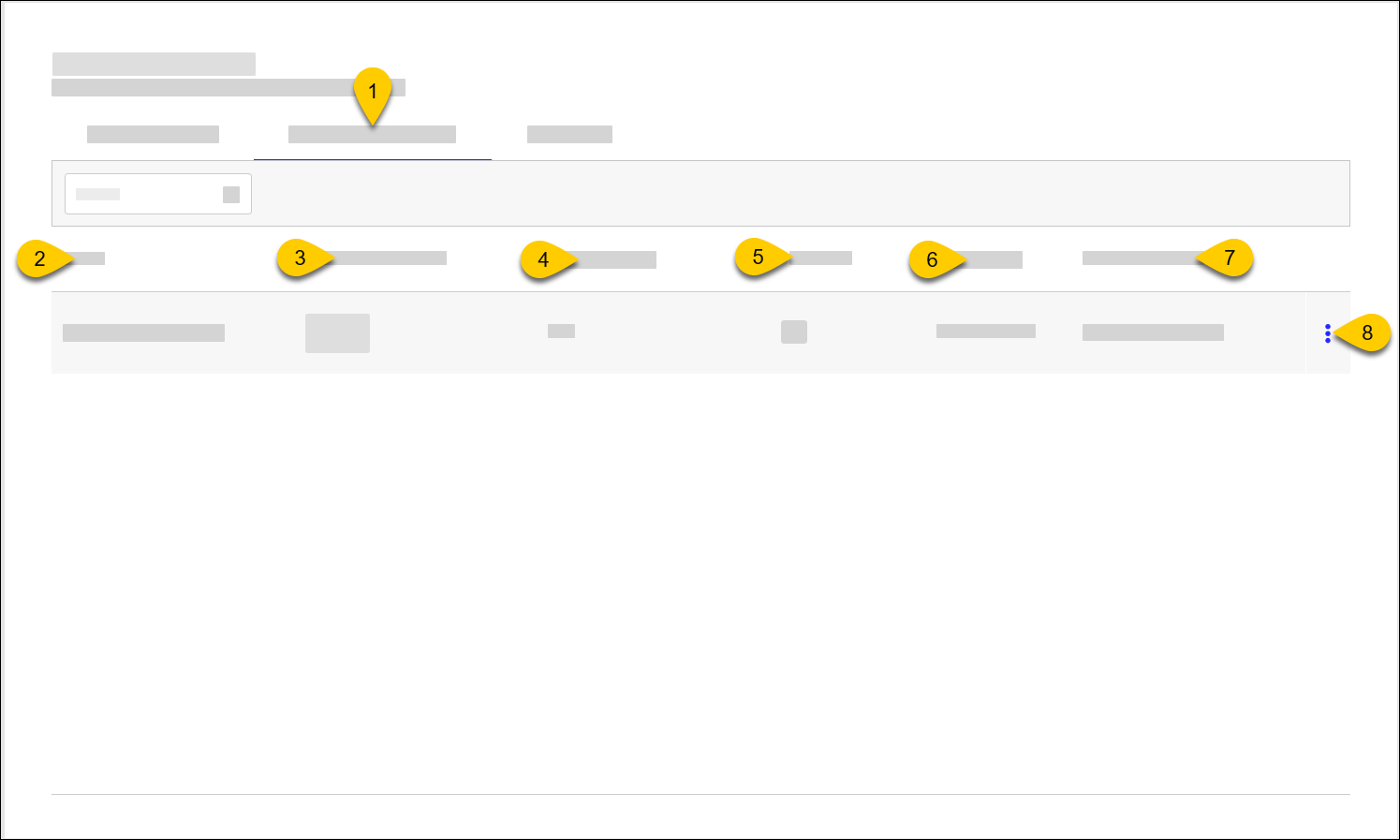 |
1 | Scheduled to Deploy | Manage Content Layouts scheduled for deployment The number of Content Layouts scheduled for deployment is specified in parentheses. |
2 | Name | Name of Content Layout. Select a Content Layout to preview the Content Design assignments. |
3 | Content Thumbnails | View thumbnails of the Content Design assignments in the layout. |
4 | Display Schema | Name of Display Schema |
5 | # of Sites | Number of sites scheduled to be updated with the Content Layout |
6 | Deployed By | User who scheduled deployment |
7 | Content Live Date | Date/time when Content Layout is scheduled to "go live" |
8 | 3-Dot Menu | Select an action to perform on the Content Layout:
|
Edit Sites
→ → →
To update the list of sites that are receiving a scheduled Content Layout deployment:
From the Content Deployment utility, select the Scheduled to Deploy tab.
From the Scheduled to Deploy tab, locate the Content Layout.
From the 3-Dot Menu on the row of the Content Layout, select Edit Sites.
From the View and Edit Deployment Sites screen, toggle the Active status of the applicable sites.
From the lower-right of the window, select Review Changes.
From the Review Changes screen, review the active status updates.
From the lower-right of the window, select Confirm and Close.
Reschedule Deployment
→ → →
To update the list of sites that are receiving a scheduled Content Layout deployment:
From the Content Deployment utility, select the Scheduled to Deploy tab.
From the Scheduled to Deploy tab, locate the Content Layout.
From the 3-Dot Menu on the row of the Content Layout, select Reschedule.
From the Reschedule Deployment window, define the following settings:
Setting
Description
Deploy Now
Deploy the Content Layout immediately.
When selected, the Date and Time fields are disabled.
Date
Date of deployment. Select the calendar icon to open a calendar.
Time
Time of deployment
Notes
Notes about the deployment
From the lower-right of the Reschedule Deployment window, select Save Changes.
The following information is provided for each Content Layout listed on the Deployed tab of Content Deployment.
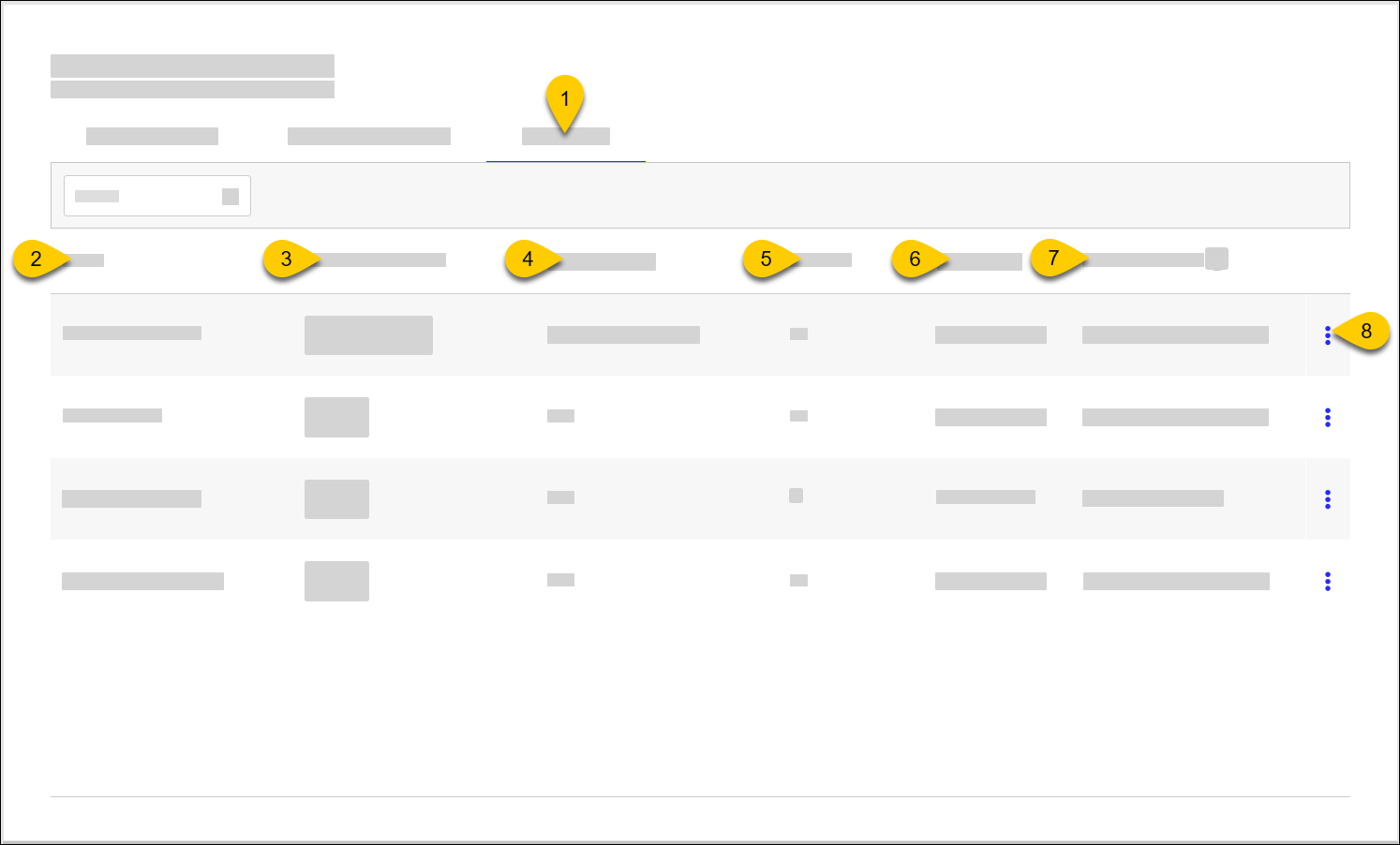 |
1 | Deployed | View previous Content Layout deployments and redeploy as needed The number of deployed Content Layouts is specified in parentheses. |
2 | Name | Name of Content Layout. Select a Content Layout to preview the Content Design assignments. |
3 | Content Thumbnails | View thumbnails of the Content Design assignments in the layout. |
4 | Display Schema | Name of Display Schema |
5 | # of Sites | Number of sites scheduled to be updated with the Content Layout |
6 | Deployed By | User who scheduled deployment |
7 | Content Live Date | Date/time when Content Layout is scheduled to "go live" |
8 | 3-Dot Menu | From the dropdown, select an action to perform on the Content Layout:
|
Edit Deployed Content
→ → →
To edit Content Design in Deployed Content:
From the Content Deployment utility, select the Deployed tab.
From the Deployed tab, locate the Content Layout.
From the 3-Dot Menu, select Preview.
From the upper-right, select Edit Deployed Content.
From the Select Designs to Edit popup, select the Content Designs to edit.
From the Select Designs to Edit popup, select Duplicate Designs to Edit.
Please wait while the Content Designs are duplicated. From the green toast notification in the upper-right, select View now.
From Content Designs, select a design to open and edit it in Content Designer.
Redeploy Content Layout
→ → →
To redeploy a selected version of Content Layout to selected sites:
From the Content Deployment utility, select the Deployed tab.
From the Deployed tab, locate the Content Layout.
From the 3-Dot Menu on the row of the Content Layout, select Redeploy.
From the Content Layout Versions window, select the version of the Content Layout to deploy.
From the lower-right of the Content Layout Versions window, select Select Version.
From the Site Selector, select the sites receiving the Content Layout.
From Schedule Deployment, define the following:
Setting
Description
Deploy Now
Deploy the Content Layout immediately.
When selected, the Date and Time fields are disabled.
Date
Date of deployment. Select the calendar icon to open a calendar.
Time
Time of deployment
Notes
Notes about the deployment
From the lower-right of the Schedule Deployment window, select Confirm and Deploy.
View Versions
→ → →
To access the version history of a Content Layout and preview a selected version:
From the Content Deployment utility, select the Deployed tab.
From the Deployed tab, locate the Content Layout.
From the 3-Dot Menu on the row of the Content Layout, select Versions.
From the Content Layout Versions window, select the version of the Content Layout to preview.
From the lower-right of the Content Layout Versions window, select Select Version.
The following actions are available from the preview screen:
Action
Description
View
From a Daypart, select a display from the Display Schema to view the screen assigned to the display.
Sites
View list of sites that received deployment
Versions
Access the version history of the Content Layout and preview a selected version
Redeploy
Redeploy a selected version of the Content Layout